The panel
One hotkey away. Never in the way.
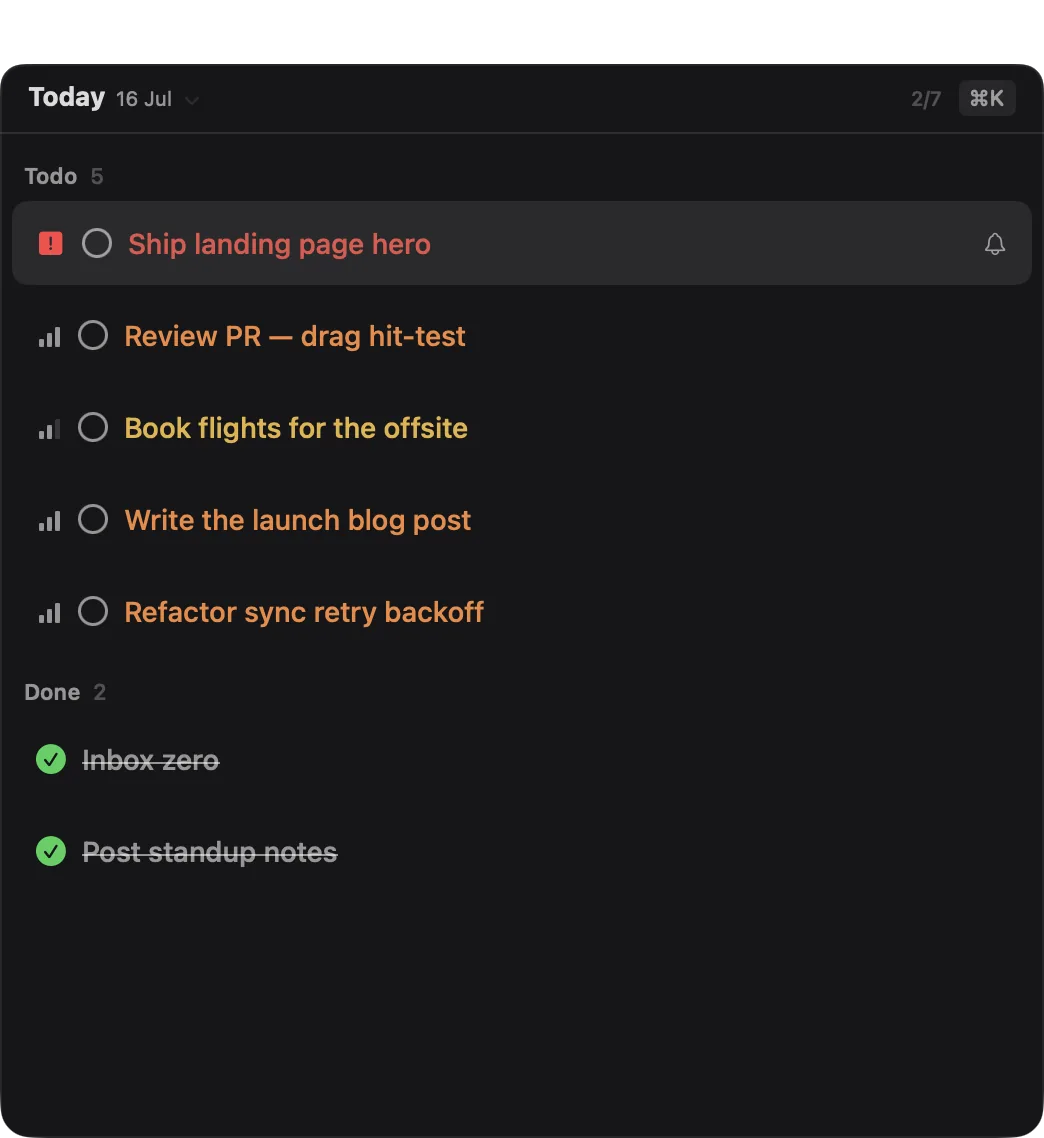
A non-activating floating panel that sits above every window — full-screen IDE included — and never steals focus from the app you're typing in.
Summon, glance, dismiss
⌥Space shows today. Esc hides it. That's the whole interaction model — the panel appears on every Space, keyboard-first, with no dock icon and no window to manage.
- Day · Week · Month · Year · Backlog scopes (⌘1…⌘5)
- Unfinished day todos roll over into today
- Priorities, subtasks, reminders, recurrences, snooze
- Minimal chrome: your tasks, and nothing else
Type it the way you'd say it
The add field is also a command surface and a global search. Two characters in, it searches everything; keep typing and natural-language tokens turn into chips — in English or Russian.
- «tomorrow», «at 15:00», «every day» — dates, reminders, recurrence
- #labels and p1–p4 priorities inline
- Click a chip to cancel it — the text returns to the title

Focus mode: one line, one task
⌥⌘F from anywhere collapses the panel into a one-line strip with your top task. Drag the edge to peek at what's next; right-click for a timer or a pomodoro. Everything else disappears.

Time-blocking
Plan the week on a real calendar
A week grid with a Task Pool pane on the left: drag a backlog task onto the grid and it becomes a time block, with a live ghost showing exactly where it lands.
Task Pool → time block
The pool holds everything undated — local tasks and imports from your trackers, grouped by source and project. Planning is dragging; unplanning is dragging back.
- Plan vs fact per day — planned hours against tracked time
- Done blocks strike through; today keeps a live time indicator
- Google Calendar events overlay read-only, time blocks sync two-way
- Open with ⌘⇧C, pool alone with ⌘⇧P

Floating Notes
A journal that knows your tasks
One note per day, live markdown, and wiki-links that connect notes to tasks and back. ⌥⌘N — same floating behavior as the panel.
Write through the day
Meeting notes, decisions, half-thoughts — type [[ and link any task or note with autocomplete. Backlinks show up on both ends, and a task's detail page lists every note that mentions it.
- Live markdown: headings, bold, lists, checkboxes as you type
- Extract a line into a real task without leaving the note
- Pinned notes on ⌘1…⌘9, search across all days with ⌘P

Time tracking
Know where the day went
A timer on any task, one key away. The menu bar ticks while it runs; the calendar shows plan against fact when it stops.
Timer & Pomodoro
P starts and stops a timer on the selected task, ⇧P runs a pomodoro with focus and break phases. Sessions are editable after the fact.
Plan vs fact
Every calendar day shows planned block time against tracked time — the honest gap between the week you scheduled and the week that happened.

Toggl mirror
Push-only mirroring into Toggl Track: local sessions stay the source of truth, and a quiet indicator tells you if a mirror call ever fails.
Privacy
Local-first. End-to-end encrypted.
Your tasks live in a database on your Mac. No accounts, no telemetry — and anything that ever leaves your device is encrypted before it does.
Local-first core
A Rust core with an embedded database owns all data. The app works fully offline; integrations only talk to the trackers you configure.
End-to-end encrypted sync
Devices sync over an encrypted peer-to-peer channel (iroh), pairing with a QR code and an explicit trust list. CRDT merge means offline edits reconcile without conflicts — and nothing readable ever leaves your device, even through an optional relay.
E2E encryption
Optional envelope encryption over a passphrase-derived key, stored in the macOS Keychain — with key slots and rotation. Tracker credentials never leave the Keychain either.
Integrations
Your trackers stay the source of truth
Import what's assigned to you, work in the panel, and write status changes back — including comments and per-workspace status mapping.

Linear
API key or OAuth sign-in. Import assigned issues, write back state changes, reply to comments from the task's detail page.

Jira
Base URL + API token. Issues land in your day or pool; toggling done in the panel transitions the issue in Jira.

YouTrack
Permanent token auth. Same import + write-back loop, with your custom status registry mapped onto YouTrack workflow states.

Obsidian
Point at a vault: its tasks import into the backlog, and checking them off writes checkbox state back into your .md files.

Google Calendar
Your calendars overlay the week read-only; scheduled todos become events, and moving an event in Google moves the todo.
Toggl Track
Timer sessions mirror into Toggl automatically — reporting stays wherever your team already does it.
Statuses aren't hardcoded: define your own registry — like Linear's — and map it per workspace onto each tracker's workflow. A plugin API for custom sources is coming.
Raycast
Capture without switching
The official Raycast extension talks to the app over a local socket — nothing leaves your machine.
Quick add
Type a task into Raycast with the same natural-language parsing — «review specs tomorrow at 11 p1» — and it lands in your day.
Today at a glance
See today's list, check things off, and jump to any task — without summoning the panel at all.
Timer control
Start or stop the timer on any task and see what's currently running, straight from the Raycast window.
And the parts you'd expect anyway
FAQ
Fair questions
How is this different from Things or Todoist?
Those are systems of record — good ones. Dondori doesn't want that job: your trackers stay the source of truth, and the panel is the focus layer above them — it imports what's assigned to you from Linear, Jira, or YouTrack and writes status changes back. The difference you feel is physical: a non-activating panel on a global hotkey, floating above your full-screen IDE, instead of one more window in the ⌘Tab carousel.
And from Raycast Notes or a menu-bar todo app?
Same summon-glance-dismiss feel, much deeper underneath: priorities, subtasks, recurrences, a time-blocking calendar, time tracking, and daily notes with backlinks — not a scratchpad. And they compose: the official Raycast extension adds and checks off tasks without summoning the panel at all.
Where is my data?
In a database on your Mac. No accounts, no telemetry — and if you pair your own devices, sync is end-to-end encrypted, so nothing readable ever leaves your machine. Tracker credentials live in the macOS Keychain. The details are in the Privacy Policy.
What will be paid after the beta?
The core app — panel, quick add, planning, notes, timers — stays free, forever. A paid Pro plan will come later for the expensive parts: hosted end-to-end-encrypted sync and the deeper tracker integrations. Prices aren't set yet, and beta users will hear about it in release notes before anything changes.
How does end-to-end encrypted sync work?
You pair devices with a QR code, and each device keeps an explicit trust list — only devices on it can connect. Changes merge as CRDTs, so offline edits reconcile without conflicts, and everything is encrypted on your device before it travels (peer-to-peer, over iroh). If traffic ever crosses a relay, the relay sees ciphertext. More in the sync docs.
When are Windows, Linux, or iOS coming?
Not yet, and no fake dates. The core is portable Rust, but the app itself is deliberately macOS-native — one platform done properly first. An iOS companion is the natural next step once sync is out of beta; announcements land in release notes and on GitHub.
Is it open source?
Not today — the app is closed-source, with releases and changelogs public on GitHub. What we promise instead is local-first: your data sits in a database on your Mac, not on our servers, and the app keeps working offline even if we vanish.
Put your day one hotkey away
Free while in beta. macOS 14 or later, Apple silicon and Intel.